Nursing Station & Barcode eMAR
The ward’s working day: doses due on the medication administration record, given after scanning the wristband and the medicine, notes and care plans per shift, tasks with due times, intake and output, the shift handover, the early-warning ward board, and a station screen per ward. The roster says which nurses are on duty on which ward and who is in charge; a ward can have a shared station login that sees that ward only, with every entry signed by a nurse and their PIN; observation rounds and nursing orders become tasks by themselves.
Where:Nursing › Nursing Station · Bed Board · Medication Administration · Ward Board — Early Warning · Shift Handover
Before you start
- Barcodes
- Every medicine needs its barcode on the medicine master (Pharmacy › Medicines); the wristband carries the patient code. A USB or Bluetooth scanner works as a keyboard.
- High-alert medicines
- Tick High-alert on the medicine master; those doses require a witness.
- Ward duty
- Duty Roster: each line names the nurse, the ward, the shift and whether they are in charge. The shift times are under Patients › Configuration › Settings › Nursing shifts (default 08:00, 14:00, 20:00).
- Nurse PINs
- Each nurse who signs at a shared station needs a PIN on the employee file (Employees › HR Settings › PIN) — the same PIN the attendance kiosk uses.
- Station login per ward
- Ward › Duty › Create station login: a shared login for the station computer, limited to that ward. Set its password under Settings › Users.
How to
Give a dose with the scanner
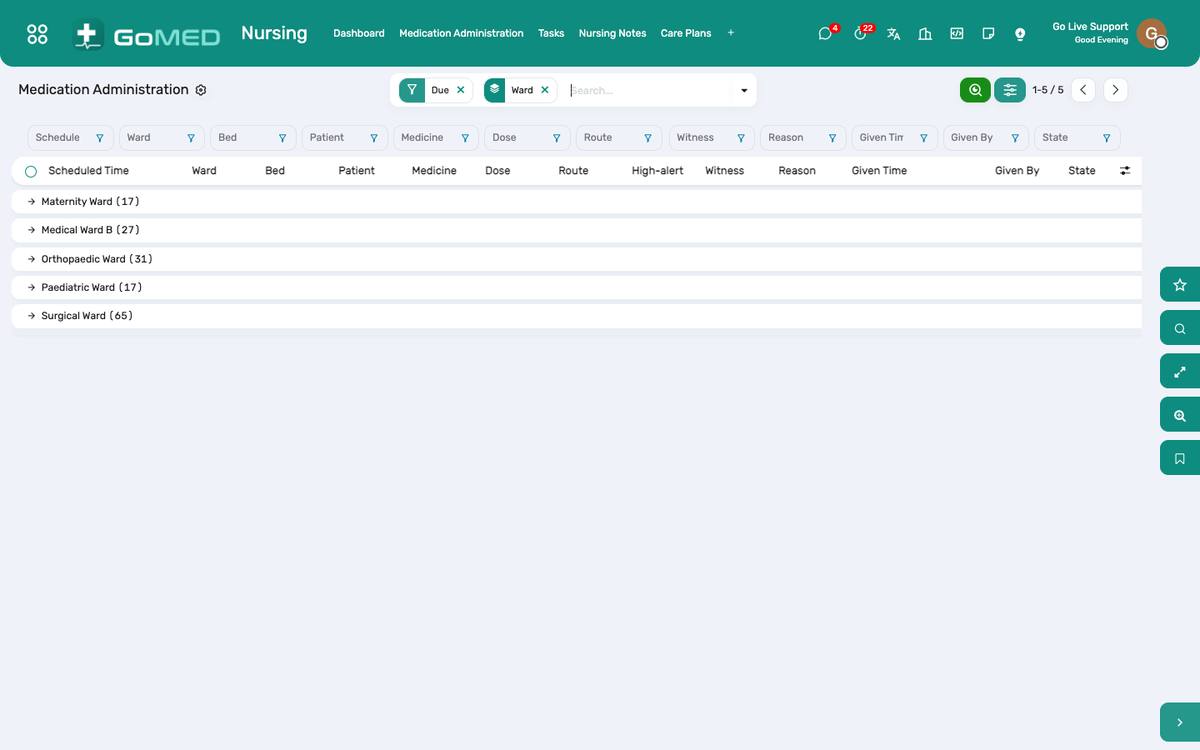
- Nursing › Medication Administration: doses due on your ward, overdue ones first.
- Click Give on the dose; the Give a Dose window opens.
- Scan the wristband: ✓ Patient confirmed, or ✗ if it is another patient’s band.
- Scan the medicine pack: ✓ Medicine confirmed, or ✗ if the barcode is another product.
- For a high-alert medicine, choose the witness (a second nurse).
- Give. The dose is recorded as scanned, with your name and the time.
Give a dose without the scanner
- In the Give a Dose window tick Confirm by hand and say why: no scanner on the round, unreadable band, no barcode on the pack.
- Give. The dose is recorded as confirmed by hand with the reason; nothing is blocked, everything is recorded.
Hold or refuse a dose
- On the dose, Hold (with the reason: nil by mouth, vitals, procedure) or Refused by patient.
- The prescriber sees held and refused doses on the visit.
Run the early-warning ward board
- Nursing › Ward Board — Early Warning: every admitted patient, their latest NEWS2 and band, the time of the last observations and whether the next set is overdue for the interval the score calls for.
- Record observations from the board: the row’s Vital Signs button.
- A medium or high score has already raised an activity for the ward nurse; acknowledge it after the review.
Write notes, care plans and tasks
- Nursing › Nursing Notes › New per shift: assessment, interventions, response.
- Care Plans: goals and interventions per problem, reviewed on a date.
- Tasks: turn, dressing, blood sugar — with a due time; the ward’s call-for-help requests from the app land here too.
- Intake / Output: fluids in and out per shift; the balance is on the admission.
Hand over the shift
- Nursing › Shift Handover › New for the ward: the open items per patient are pulled in; add what the next shift must know.
- Sign; the incoming nurse reads and acknowledges it.
Work at the nursing station screen
- Nursing › Nursing Station (or https://<hospital>/nursing/station on the station computer): every bed of the ward with the patient, allergies, NEWS2, the last and next observations, doses due in the next two hours and late ones, tasks and calls for help; the nurses on duty and who is in charge are at the top.
- It refreshes every minute; add ?tv=1 for a wall screen.
- A ward station login lands on its ward's screen and sees that ward only — its patients, beds, rounds, notes and vital signs.
Sign work done at a shared station
- On a station login, Given, Held, Refused and Done ask Who did it?: pick the nurse from the nurses on duty on the ward and enter their PIN.
- Vital signs, nursing notes and intake/output entered from a station need the nurse and the PIN on the form.
- The record keeps both: the station login that charted it and the nurse who did it. A personal login signs its own work without a PIN.
Let the system plan the rounds
- Observation rounds: each admission has an observation interval — By NEWS2 (the default: hourly for a medium or high score, six-hourly otherwise) or a fixed one; a Vital signs task falls due at the interval and recording the vital signs closes it.
- Nursing orders: the physician orders a nursing task (dressing, turning, catheter care…) with a frequency; the tasks of the next 24 hours appear on the ward and keep rolling until the order is completed or the patient is discharged.
- Medication doses follow the ward's clock: twice daily is 09:00 and 21:00 hospital time.
Limit a login to its wards
- Settings › Users › the user › Access rights: GoMed Ward Access = Own wards only; Wards tab: the wards.
- The login then sees those wards' admissions, beds, patients, medication rounds, tasks, notes, vital signs and the nursing dashboard of those wards only — like a branch user.
See also: Prescriptions & Orders Admissions & Bed Board Intensive Care Charting Pharmacy & Dispensing