Appointments, Queue & Teleconsultation
Booking against each practitioner’s schedule, walk-ins, arrival tokens, a live queue for reception and a corridor screen for the waiting room. A teleconsultation type gives the visit a video room instead of a token. Whole-session clinics run on queue tickets: the patient books any day, then takes a numbered ticket from the app or the portal on the day, from a set time before the clinic opens. A self-service kiosk checks patients in and prints the ticket; the doctor or the counter calls the next number and the waiting-room screen announces it.
Where:Appointments › Appointments · Today’s Queue · Waiting Room Screen
Before you start
- Schedules
- Appointments › Schedules: for each practitioner, the weekdays, hours and slot length. Booking offers only the free slots.
- Appointment types
- Appointments › Configuration › Appointment Types: consultation, follow-up, procedure, vaccination, teleconsultation. Tick “Teleconsultation” on the video type.
- Video server
- Patients › Configuration › Settings › Video meeting server. The public Jitsi server works out of the box; a hospital with its own server points it there.
- Corridor screen
- Open /queue on the waiting-room television; add /<department id> to show one department only.
- Whole-session clinics
- On a schedule, Booking = Whole session (first come, first served): patients book the session, not a time, up to its capacity; their number comes from the queue ticket on the day.
- Queue ticket window
- Patients › Configuration › Settings › Appointments & Queue › Queue tickets: how many minutes before a session tickets open (default 120). A schedule can set its own.
- Check-in kiosk
- Appointments › Configuration › Queue › Kiosks: one record per kiosk (where it stands, the service points it issues numbers for), Create kiosk login, set its password under Settings › Users. Run the kiosk browser full screen with silent printing — chrome --kiosk --kiosk-printing https://<hospital>/queue/kiosk — and an 80 mm receipt printer as the default printer.
- Service points
- Appointments › Configuration › Queue › Service Points: Reception (R), Cashier (C)… with the prefix on the ticket and the number of counters.
How to
Book an appointment
- Appointments › Appointments › New (or from the patient form › Appointments).
- Choose the patient, the practitioner and the type; the calendar shows the free slots of that practitioner’s schedule.
- Pick the slot; save. The patient receives an SMS confirmation if SMS is switched on.
- State becomes Confirmed.
Register a walk-in
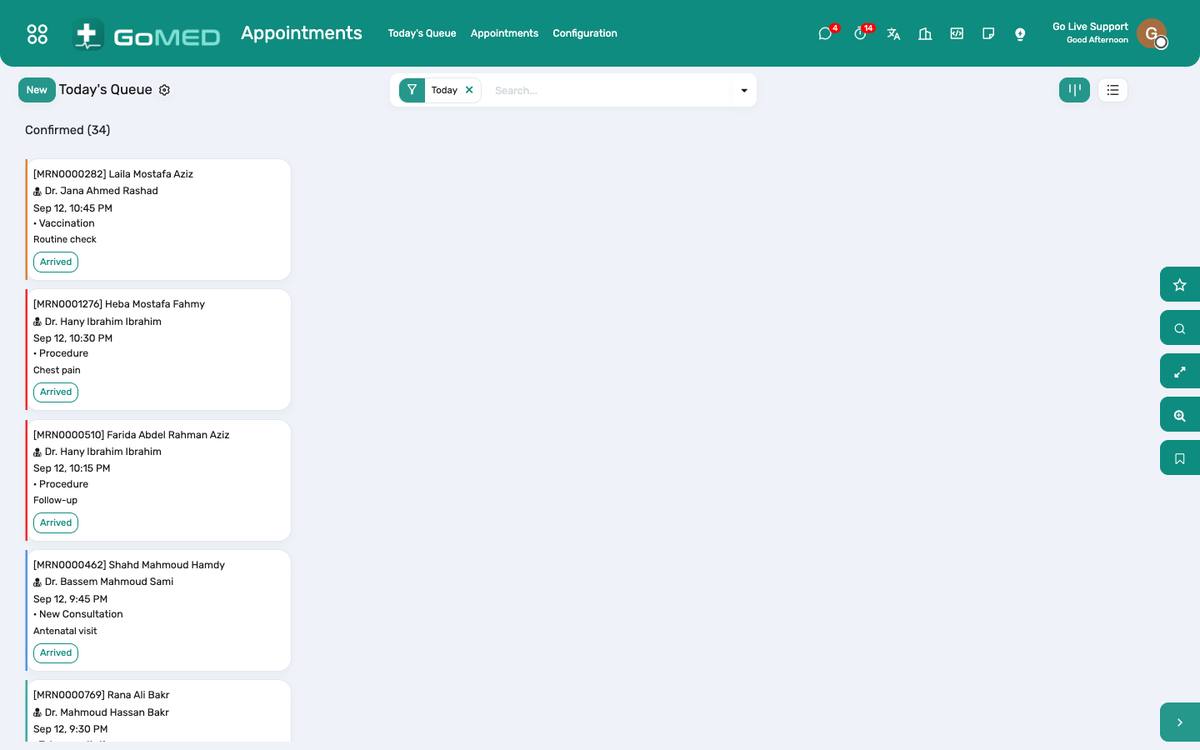
- Appointments › Today’s Queue › Walk-in.
- Choose the patient (or register a new one) and the practitioner; the appointment is created at the current time and marked Arrived with the next token.
Arrive a patient and run the queue
- When the patient reports to the desk, open the appointment and click Arrive: the token is assigned; Print Ticket prints it on the receipt printer (or the patient checks in at the kiosk).
- Today’s Queue lists the arrived patients per practitioner in token order with the estimated wait.
- The practitioner clicks Start consultation from the queue or the appointment; the visit opens with the history loaded.
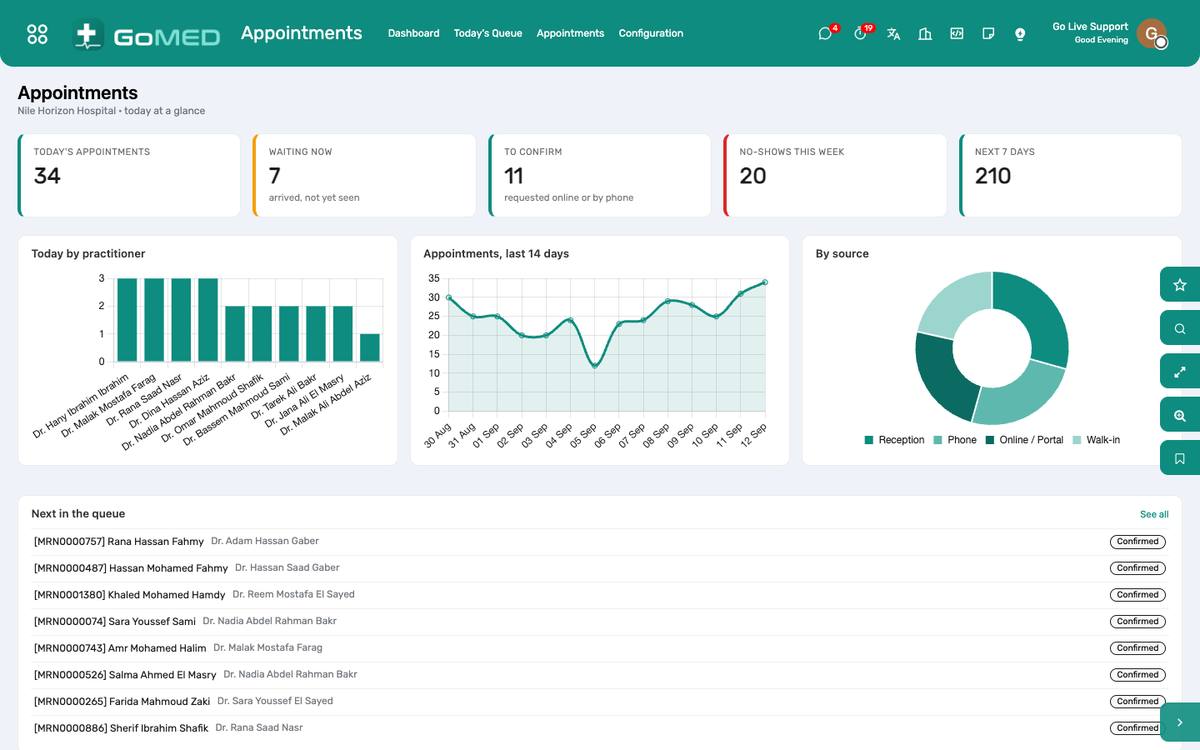
- No-show marks the ones who never came; the dashboard counts them per practitioner.
Reschedule or cancel
- Open the appointment; change the date or the slot and save, or click Cancel and give the reason.
- The patient gets a new confirmation (SMS) when the slot changes.
Hold a teleconsultation
- Book the appointment with the Teleconsultation type; a video room is created automatically.
- The patient sees the “Join the video visit” button on the portal and in the app from a few minutes before the time.
- The practitioner opens the appointment and clicks Join video; the visit starts and the room opens in a new tab.
- Document the visit as usual; there is no token and no waiting room for video visits.
Put the queue on the corridor screen
- Open the television’s browser at https://<hospital>/queue (or /queue/<department id>).
- The screen shows, per practitioner, the token now serving and the next ones, and the reception and cashier counters; it updates every few seconds, announces each call aloud (tap once to turn the sound on; add ?lang=en or ?voice=both) and needs no login.
- The patient sees the same information on the portal under Today, with their own token and the estimated wait.
Run a first-come-first-served session
- Patients book the session online or at the desk any day before; each booking holds a place in the session, not a time.
- From the ticket window (for example two hours before the start) the patient takes a ticket in the app or on the portal; numbers follow the order tickets are taken.
- At the desk, Arrive keeps a ticket holder’s number; a patient who arrives without a ticket gets the next number then.
- Today’s Queue and the corridor screen count ticket holders as in the line, so the estimated wait is honest before they arrive.
Give a queue ticket at the desk
- Open the appointment › Give Queue Ticket while the window is open.
- Before the window opens it says when it will; after the session ends it is refused.
Check in at the kiosk (patient)
- At the entrance kiosk: I have an appointment today, then scan the patient card or type the national ID or the file number — or the mobile number and the year of birth.
- Today's appointments appear with the doctor, the time and the room; Check in gives the number (a first-come session takes the queue ticket and checks in at once).
- The ticket prints: the number, the doctor and room, how many are ahead, and a QR that follows the queue live on the phone.
- No appointment: Take a number for Reception or the Cashier; the ticket says R-007 and the counter calls it.
Call the next patient
- A doctor: Today's Queue › Call my next patient (list view), or Call on the patient's card.
- Reception: Call on any patient with a token; Call again repeats it.
- The waiting-room screen flashes the number with a chime and announces it — 'Number 12, please go to room 11' — in Arabic, English or both; the patient's app and portal say You are being called, the SMS gives the room, and the patient two places behind is told to come back to the clinic.
Run a reception or cashier counter
- Appointments › Counter Desk: choose the service point and your counter (remembered on this computer).
- Call next calls the lowest waiting number to your counter; Call again, Served, Did not come; New ticket prints a number for someone at the desk.
- Counter Tickets lists the day's numbers, who was served and when.
Print a ticket
- On an appointment with a token: Print Ticket; on a counter ticket: the printer icon.
- The 80 mm ticket opens and prints; the kiosk and the counter desk print theirs by themselves.
Questions the desk asks
The patient wants a specific doctor who has no schedule that day.
Book on another day, or add a one-off slot under Appointments › Schedules; a booking outside the schedule is refused on purpose.
Where do online booking requests go?
Patient Portal › Portal Requests. Reception converts each into a confirmed appointment; the patient sees the status on the portal.
A patient says the app will not give a ticket.
The ticket window has not opened yet (the app shows a countdown), the session has ended, or the visit is by video — video visits have no ticket.
See also: Patients & Registration SMS Messages Patient Portal Visits (EMR)